Last updated: April 26, 2026
Last Updated: April 10, 2026
Still have questions about Apple TV IPTV setup? Check our FAQ and setup guide for quick answers.
Setting up IPTV on Apple TV is one of the cleaner ways to watch live TV on a big screen, and it works well once you know which apps to use. Apple TV doesn’t have a native IPTV player, so you’ll need a third party app from the App Store. This guide covers every option available right now: GSE IPTV, IPTV Smarters Pro, Flex IPTV, and AirPlay as a fallback. Whether you have an Apple TV 4K or the older HD model, the process is the same. If you already have an IPTV subscription with an M3U URL or Xtream Codes login from a provider like XtremeHD IPTV, you’ll be streaming within about ten minutes.
In This Guide
- 01.Quick Answer
- 02.Which Apple TV Models Support IPTV Apps?
- 03.What You Need Before You Start
- 04.Option 1: GSE IPTV (Best Free Option)
- 05.Option 2: IPTV Smarters Pro (Best for Xtream Codes)
- 06.Option 3: Flex IPTV
- 07.How to Set Up EPG (Electronic Programme Guide)
- 08.AirPlay: Stream IPTV from iPhone or iPad to Apple TV
- 09.Xtream Codes vs M3U: Which Should You Use?
- 10.Troubleshooting Common Issues
- 11.Internet Speed Requirements for Apple TV IPTV
- 12.Getting Your XtremeHD IPTV Subscription
- 13.Top IPTV Apps for Apple TV
- 14.Wrapping Up
Quick Answer
To set up IPTV on Apple TV: download an IPTV player app like IPTVX or GSE Smart IPTV from the App Store, open it, and add your M3U playlist URL or Xtream Codes login. This works on Apple TV 4K and Apple TV HD running tvOS 15 or later, and setup takes about 5 minutes.
Additionally, keep reading for the full step by step guide with screenshots and troubleshooting tips.
Which Apple TV Models Support IPTV Apps?
Not every Apple TV model works the same way. The older Apple TV (1st, 2nd, and 3rd generation) runs a closed operating system and can’t install third party apps at all. Those are off the table.
Moreover, the models that work are:
- Apple TV HD (4th generation, 2015), runs tvOS, supports the App Store
- Apple TV 4K (1st gen, 2017), full 4K support, App Store
- Apple TV 4K (2nd gen, 2021), faster chip, same App Store access
- Apple TV 4K (3rd gen, 2022), fastest model, WiFi 6, USB-C charging
Any of these will run GSE IPTV or IPTV Smarters without issue. If you have the 4K model, you’ll also get the benefit of 4K HDR streams if your IPTV provider supports them. XtremeHD IPTV streams in up to 4K quality on supported channels.
What You Need Before You Start
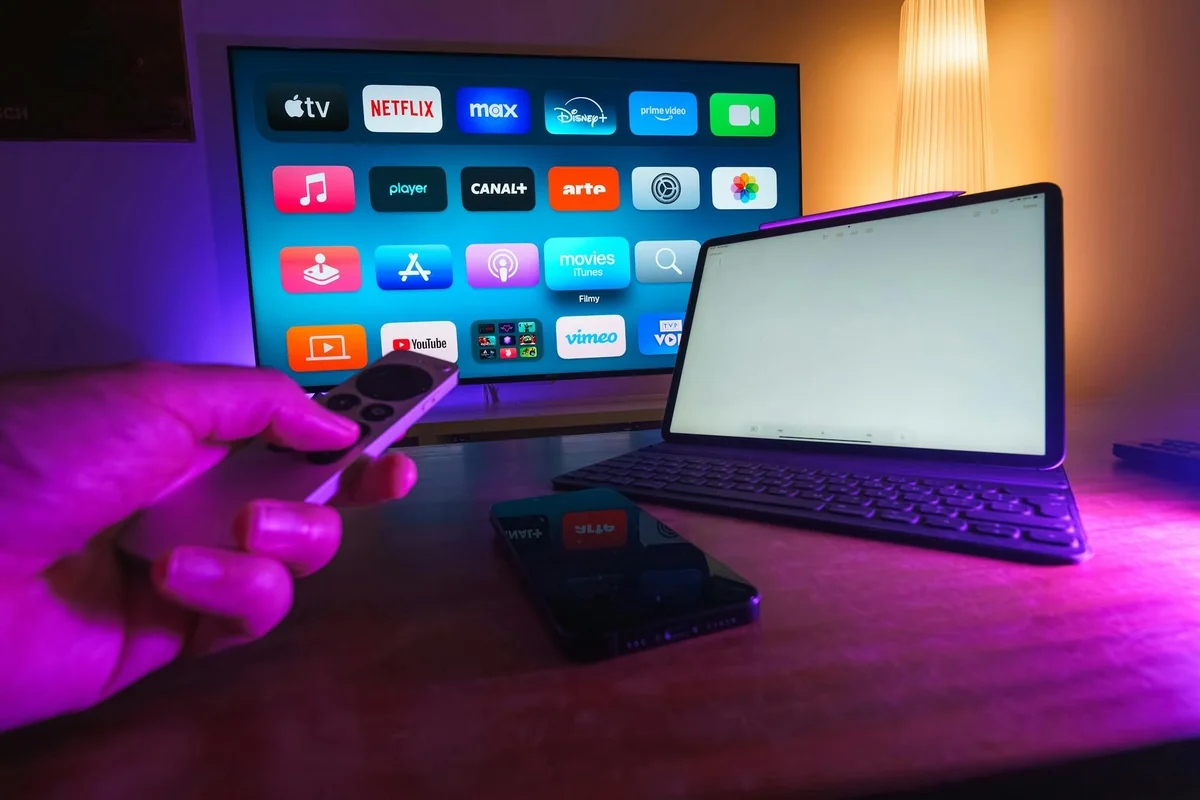
Typically, before you open the App Store, get these three things ready:
- An active IPTV subscription, specifically, your M3U playlist URL or Xtream Codes credentials (server URL, username, password)
- Your Apple TV connected to the internet (WiFi or ethernet)
- An Apple ID logged into the App Store on your device
Your IPTV provider sends these details by email after you subscribe. If you’re with XtremeHD IPTV, you’ll receive your Xtream Codes login within a few minutes of payment. Keep that email open, you’ll paste those details into the app shortly.
Option 1: IPTV on Apple TV with GSE IPTV
Notably, gSE IPTV is probably the most popular IPTV player on the App Store right now. It’s free, handles both M3U and Xtream Codes, and has a solid EPG (electronic programme guide) so you can see what’s on. The interface is functional, not pretty, but it gets the job done reliably.
How to set it up:
- On your Apple TV, open the App Store and search for “GSE IPTV”
- Download and install it (free)
- Open the app and go to Remote Playlists
- Tap the + button in the top right corner
- Select Add M3U URL and paste your playlist link, or choose Xtream Codes API and enter your server URL, username, and password
- Give the playlist a name (anything works) and tap Add
- Wait for the channel list to load, this takes 30-60 seconds on most connections
Once loaded, you’ll see all your channels organized by category. Tap any channel to start streaming. GSE also supports EPG if your provider includes an EPG URL, you can add that under Settings > EPG/VOD.
Option 2: IPTV on Apple TV via Smarters Pro
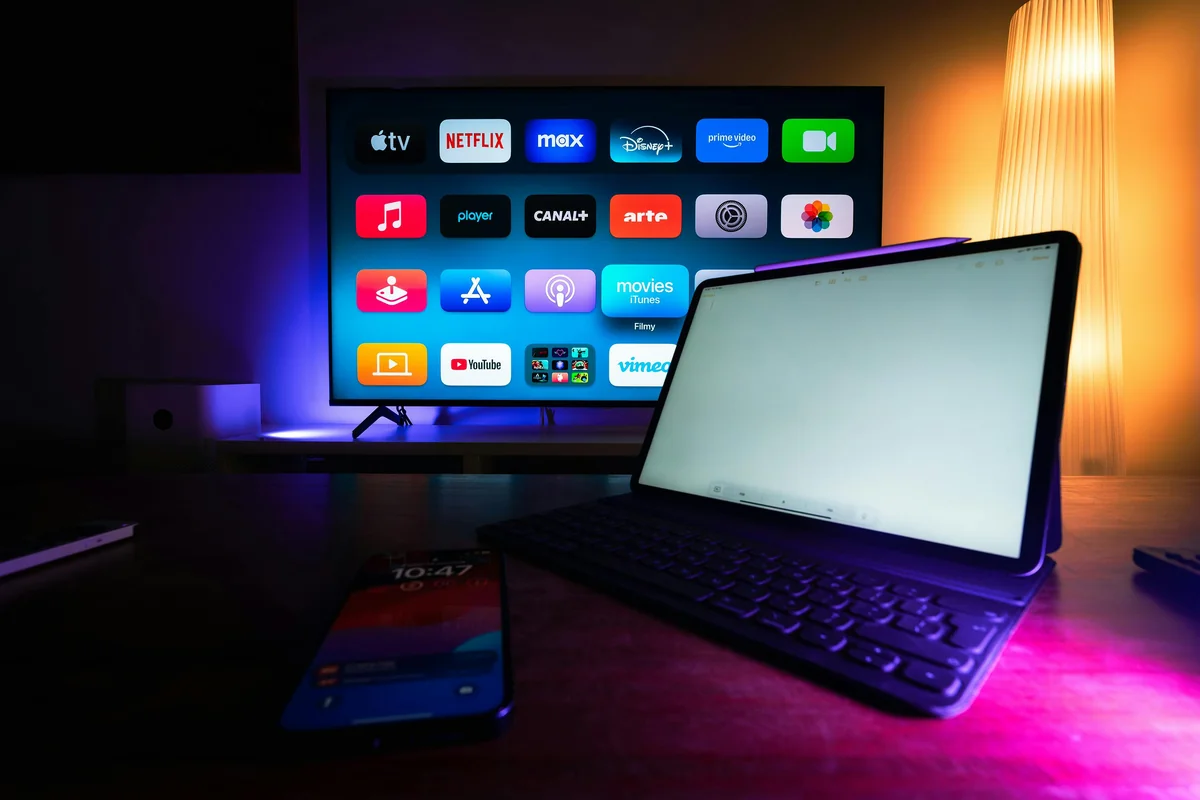
Overall, iPTV Smarters Pro is the go-to app if your provider uses Xtream Codes (most do). It has a more polished interface than GSE, with a proper home screen showing live TV, VOD movies, and TV series in separate sections. The downside is it costs a small one time fee on tvOS, but most people find it worth it.
Setup steps:
- Search “IPTV Smarters Pro” on the App Store and install it
- Open the app and choose Login with Xtream Codes API
- Enter your provider’s server URL (e.g., http://yourprovider.com:8080), your username, and password
- Tap Add User and let the app sync your channels
- You’ll now see Live TV, Movies, and Series tabs across the top
The VOD library is where Smarters really shines. XtremeHD IPTV includes 140,000+ on demand titles, and Smarters displays them with cover art and a clean browsable layout. If you watch a lot of VOD alongside live TV, this is the app to use.
Option 3: IPTV on Apple TV Using Flex
Meanwhile, flex IPTV is a third alternative that works well for M3U playlists. It’s lightweight, fast, and has a simple interface. Some users prefer it because it handles large M3U files (500+ channels) without slowing down, which can be an issue with other players on older Apple TV HD units.
Setup is almost identical to GSE: open the app, go to playlist settings, add your M3U URL, and start watching. Flex also supports Xtream Codes via a URL format. It doesn’t have the full EPG support that GSE or Smarters offer, so if seeing programme schedules matters to you, stick with one of those two.
How to Set Up EPG (Electronic Programme Guide)

However, an EPG shows you what’s currently on and what’s coming up next, like a traditional TV guide. Most good IPTV providers include an EPG URL alongside your playlist details.
In GSE IPTV, you add EPG data under Settings > EPG/VOD Sources. Paste the EPG URL from your provider and set the refresh interval to every 24 hours. The first load can take a minute since it’s downloading the full schedule data.
For example, in IPTV Smarters, EPG is pulled automatically when you log in with Xtream Codes, you don’t need to do anything extra. The guide populates itself within a few minutes of the first launch.
XtremeHD IPTV includes full EPG data with all plans. You’ll see show titles, descriptions, and times for every supported channel once it’s configured in your player.
AirPlay: Stream IPTV from iPhone or iPad to Apple TV
Similarly, if you’d rather not set up an app directly on Apple TV, AirPlay is a solid workaround. You install an IPTV app on your iPhone or iPad instead (GSE IPTV and IPTV Smarters both have iOS versions), and then mirror or cast the stream to your Apple TV.
How to use AirPlay for IPTV:
- Set up GSE IPTV or IPTV Smarters on your iPhone/iPad with your subscription details
- Start playing any channel
- Swipe down to open Control Center and tap the AirPlay icon (the rectangle with a triangle)
- Select your Apple TV from the list
- The stream will appear on your TV within a few seconds
AirPlay works well for occasional use, but you’ll need to keep your phone awake and nearby. For daily watching, setting up an app directly on Apple TV is more convenient. That said, AirPlay is useful if you want to try IPTV before committing to a particular app setup.
Xtream Codes vs M3U: Which Should You Use?
Generally, this question comes up a lot, so here’s a quick breakdown.
Xtream Codes: A login-based system (server URL + username + password). The app fetches channels, VOD, and EPG automatically. Easier to manage, auto-updates when channels change.
M3U URL: A direct link to a playlist file. Simpler, works in more players, but you may need to refresh the URL manually if channels change.
Recommendation: Use Xtream Codes if your provider offers it. It gives you a better organized library and smoother EPG integration.
XtremeHD IPTV supports both formats, so you can choose whichever your preferred app handles best. Most Apple TV apps work better with Xtream Codes because the VOD library loads with proper thumbnails and metadata.
Troubleshooting Common Issues
Clearly, a few problems come up regularly with IPTV on Apple TV. Here’s how to fix them:
Channels won’t load or show a black screen: First, check your internet connection. IPTV needs at least 10 Mbps for HD and 25 Mbps for 4K. If your connection is fine, try switching from WiFi to ethernet using an Apple TV ethernet adapter. Wired connections are noticeably more stable for streaming.
Buffering every few minutes: This is usually a bandwidth issue. Run a speed test on your TV’s connection. If you’re sharing the network with other devices, try streaming during off-peak hours. Some providers also have peak-hour congestion, a VPN can sometimes help by routing around it.
App crashes on launch: Delete and reinstall the app. This clears any corrupted cache. Also make sure tvOS is updated, older firmware versions occasionally have compatibility issues with newer app updates.
EPG not showing: Give it 5-10 minutes after adding the EPG URL. The initial download takes time. If it still doesn’t load, check that the URL is correct and your provider’s EPG service is online.
Can’t find the app in the App Store: Some IPTV apps are region-restricted. If GSE IPTV or Smarters isn’t showing in your country’s store, you can create a US Apple ID to access the US App Store where both apps are available.
Internet Speed Requirements for IPTV on Apple TV
Here’s what you actually need to stream without buffering:
Standard Definition (SD): 5 Mbps
High Definition (HD 720p/1080p): 10-15 Mbps
4K Ultra HD: 25 Mbps or higher
Multiple streams at once: Add 15-25 Mbps per additional stream
Importantly, most home broadband connections handle this without any issue. The problem is usually not total bandwidth but consistency, short dips in your connection cause the buffering you see. Ethernet nearly always fixes this on Apple TV because it removes the wireless interference variable.
Getting Your XtremeHD IPTV Subscription
If you’re looking for a reliable IPTV service to use with your Apple TV setup, XtremeHD IPTV offers plans starting at $25 per month. You get 20,000+ live channels, 140,000+ VOD titles, HD and 4K quality where available, and full EPG support.
Furthermore, setup takes under 10 minutes: subscribe, receive your login details by email, open GSE IPTV or IPTV Smarters on your Apple TV, enter the credentials, and you’re live. There’s no contract, so you can start with a single month to test it on your setup before committing to a longer plan.
Check the available plans at the XtremeHD shop, the 3 month and 6 month plans offer better value per month if you decide to stick with it.
Top IPTV Apps for Apple TV
Apple TV’s locked-down App Store means you’re limited to vetted apps, but the good ones work brilliantly. Here are the picks that support Xtream Codes and M3U.
| App | Price | Xtream Codes | M3U Playlist |
|---|---|---|---|
| Smarters Player Lite | Free | Yes | Yes |
| iPlayTV | Paid (one-off) | Yes | Yes |
| GSE Smart IPTV | Free / Paid | Yes | Yes |
| Televizo | Free | Yes | Yes |
Frequently Asked Questions
Q.Can I use IPTV on Apple TV without a jailbreak?
Yes, completely. GSE IPTV, IPTV Smarters, and Flex IPTV are all available on the official App Store. No jailbreak, no sideloading, no technical workarounds needed.
Q.Is GSE IPTV free on Apple TV?
GSE IPTV is free to download and use on tvOS. Some advanced features are behind an in-app purchase, but the core M3U and Xtream Codes functionality is free.
Q.Does Apple TV 4K support 4K IPTV streams?
Yes. Apple TV 4K plays 4K HDR content natively. If your IPTV provider offers 4K channels, they’ll play in full 4K on Apple TV 4K as long as your TV and internet connection support it.
Q.Can I use an M3U URL directly in the Apple TV built in app?
No. Apple’s built in TV app doesn’t accept M3U playlists. You need a third party IPTV player from the App Store.
Q.How many simultaneous streams does IPTV support on Apple TV?
That depends on your subscription. Some plans include one connection, others include two or three. XtremeHD IPTV offers multi connection plans if you want to watch on different devices at the same time.
Q.Will IPTV work on Apple TV without internet?
No. IPTV streams over the internet, so you need an active connection. Unlike cable, there’s no offline viewing for live TV (some apps let you record streams if you have external storage).
Q.Which is better for IPTV: Apple TV or Fire TV Stick?
Both work well. Apple TV has a more premium build and tighter software, while Fire TV is cheaper and has more IPTV-specific apps available. If you already own an Apple TV, stick with it. If you’re buying new specifically for IPTV, both are solid choices.
Q.Can I use AirPlay from Android to Apple TV for IPTV?
You can use apps like AirPlay for Android or third party AirPlay emulators, but it’s not as smooth. The more reliable route is installing the IPTV app directly on the Apple TV.
Q.What happens if my IPTV app crashes mid-stream?
Just reopen the app and go back to the channel you were watching. IPTV apps on tvOS occasionally crash due to memory limits on older Apple TV models. If it happens frequently, try clearing the app’s cache in tvOS Settings or reinstalling.
Q.Is it legal to watch IPTV on Apple TV?
Using an IPTV app on Apple TV is perfectly legal. The legality depends on your specific subscription and the content it includes. Using a licensed IPTV service with properly acquired broadcast rights is legal in most countries. For a deeper dive, read our breakdown of why XtremeHD IPTV is a legit choice for US viewers.
Wrapping Up
Specifically, apple TV is a reliable platform for IPTV, and the setup process is genuinely straightforward once you pick the right app. GSE IPTV works well for most users and costs nothing. IPTV Smarters is the better pick if you want a polished interface and easy VOD browsing. AirPlay covers you as a quick fallback from your iPhone without any setup on the TV itself.
The key to a good experience is a stable internet connection, ethernet if possible, a solid WiFi signal at minimum. Get that right, and you’ll have 20,000+ channels running smoothly on your Apple TV.
In practice, ready to get started? View XtremeHD IPTV plans and get your login details in minutes. The 1 month plan is a risk-free way to test everything on your Apple TV before choosing a longer subscription.