Last updated: April 26, 2026
Last Updated: April 10, 2026
In This Guide
- 01.How to Set Up IPTV on iPhone and iPad
- 02.What’s the Best IPTV App for iPhone?
- 03.How to Set Up IPTV Smarters Pro on iPhone
- 04.How to Set Up GSE Smart IPTV on iPhone
- 05.EPG Setup on iPhone IPTV Apps
- 06.Using Picture-in-Picture on iPhone
- 07.How to AirPlay IPTV from iPhone to Your TV
- 08.What Connection Speed Do You Need for IPTV on iPhone?
- 09.Can You Use IPTV on iPhone with a VPN?
- 10.Troubleshooting IPTV on iPhone
- 11.iPhone vs iPad for IPTV: Any Differences?
- 12.Top IPTV Apps for iPhone and iPad
- 13.Wrapping Up
How to Set Up IPTV on iPhone and iPad
Running IPTV on iPhone is more straightforward than most people expect. The App Store has several solid IPTV players, and adding your subscription takes just a few taps once you have your login details. This guide covers the three best iOS IPTV apps, how to connect them to your service, and how to use features like picture-in-picture and AirPlay to get the most out of your setup.
Additionally, whether you’re setting up IPTV for the first time or switching to a new app, you’ll have channels playing within 10 minutes. The steps work on every iPhone model running iOS 14 or newer, and on all iPad models with iPadOS 14+.
- Best paid app: IPTV Smarters Pro (about $3.99, App Store)
- Best free option: GSE Smart IPTV (free tier available, premium upgrade optional)
- Minimalist option: Flex IPTV (clean interface, good EPG)
- Connect via Xtream Codes login or M3U URL (both work with all three apps)
- Picture-in-picture works on iPhone 12 and newer
- AirPlay to Apple TV or any AirPlay 2-compatible TV
What’s the Best IPTV App for iPhone?
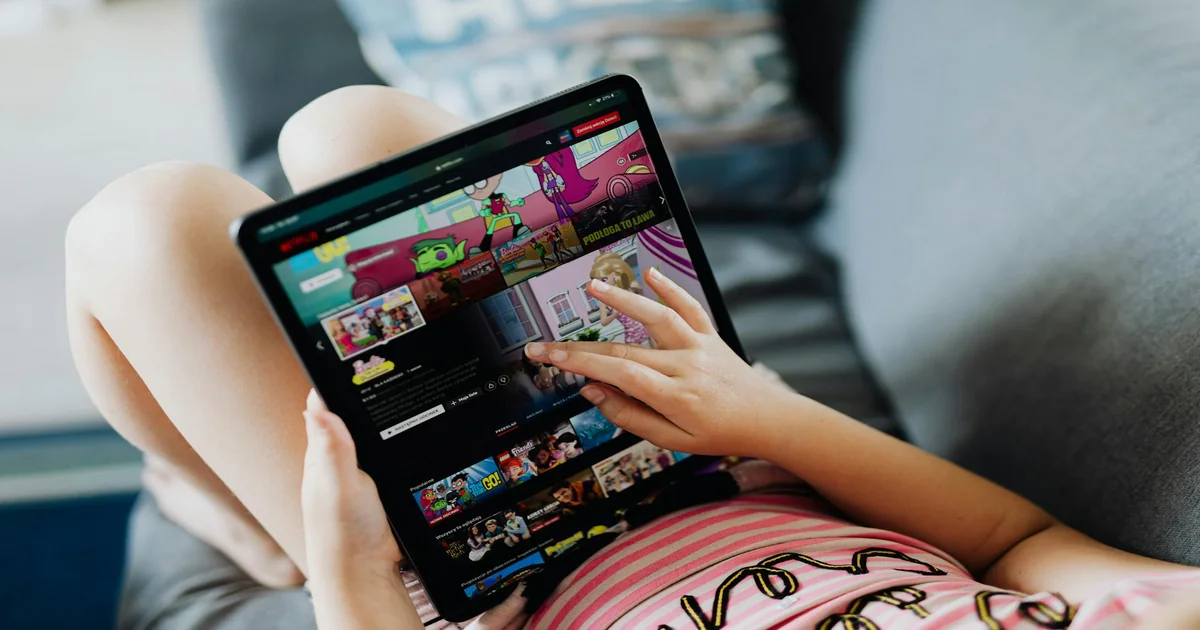
There are three apps worth using on iOS, and which one you pick depends mostly on what you’re willing to pay and how much you care about interface design.
IPTV Smarters Pro is the most widely used IPTV app on both iOS and Android. It supports Xtream Codes API and M3U URLs, has a decent EPG grid, handles VOD and series, and is actively maintained. At around $3.99, it’s worth the cost if you plan to use IPTV regularly. The one downside is that the interface can feel a bit cluttered with a large channel list.
GSE Smart IPTV is free to download and works well for basic use. The free version covers most functionality, but the premium version (a one time in-app purchase) opens up the full EPG grid and removes some limitations. GSE has one of the better remote playback features among iOS IPTV apps, which is useful if you want to control what plays on a TV from your phone.
Flex IPTV has a cleaner, more minimal interface than the other two. It’s designed to look native to iOS, which makes it feel less like a ported Android app. Flex supports M3U and Xtream Codes, has solid EPG support, and works well with picture-in-picture. It’s free to download with a one time get access to fee for full features.
How to Set Up IPTV Smarters Pro on iPhone
Step 1: Download the App
- Open the App Store on your iPhone or iPad
- Search for “IPTV Smarters Pro”
- Tap Get and install the app (you’ll need to confirm with Face ID or your Apple ID password)
- Open the app once it installs
Step 2: Add Your IPTV Service via Xtream Codes
Moreover, xtream Codes is the cleanest connection method. Your provider gives you three things: a server URL, a username, and a password. That’s all you need.
If you are still shopping providers for your iPhone or iPad, our best IPTV service USA 2026 roundup compares the providers that ship clean Xtream Codes for iOS users.
- On the IPTV Smarters home screen, tap “Add User”
- Select “Login with Xtream Codes API”
- Enter a name for this profile (e.g., “XtremeHD”)
- Enter the server URL your provider gave you
- Enter your username and password
- Tap Add User
The app will connect to the server and download your channel list, EPG data, and VOD library. Depending on how large the list is, this can take 30 seconds to a couple of minutes. Once it’s done, you’ll see all your content organized into Live TV, Movies, and Series tabs.
Step 3: Add Your Service via M3U URL (Alternative Method)
Typically, if your provider gives you an M3U URL instead of Xtream Codes credentials, the process is slightly different.
- Tap “Add User” on the home screen
- Select “Load Your Playlist or File/URL”
- Paste your M3U URL in the URL field
- Give the playlist a name and tap Add
M3U works well but it doesn’t always include VOD and series organized as neatly as Xtream Codes does. For live TV channels, the experience is identical.
How to Set Up GSE Smart IPTV on iPhone
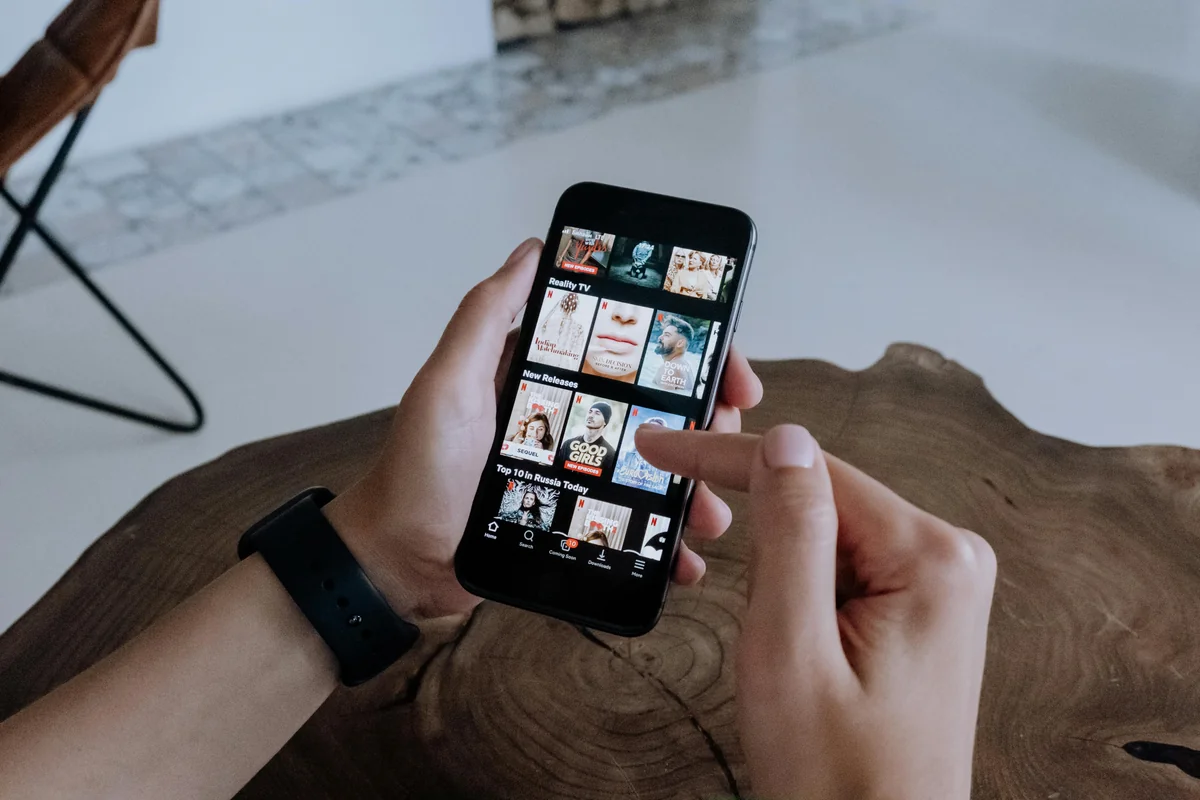
Notably, gSE handles the setup process a little differently from IPTV Smarters but it’s just as straightforward.
- Download GSE Smart IPTV from the App Store (free)
- Open the app and tap the menu icon in the top left
- Select “Remote Playlists”
- Tap the “+” button to add a new playlist
- Select “Xtream Code Login” or “M3U URL” depending on what your provider gave you
- Fill in your credentials or paste the M3U URL
- Tap “Add” and let the channels load
Once the playlist is loaded, go back to the main screen and tap Live TV to see your channels. GSE organizes channels by group, so sports channels, news channels, and movie channels are sorted into separate folders automatically if your provider has set up the groups correctly.
EPG Setup on iPhone IPTV Apps
Overall, the EPG (electronic program guide) shows you what’s currently airing and what’s coming up on each channel. Most good IPTV providers include EPG data automatically when you connect via Xtream Codes. If the EPG isn’t loading, you may need to manually enter an XMLTV URL.
In IPTV Smarters, you can add an EPG URL through the playlist settings. Tap on the playlist name, then Edit, and look for the EPG URL field. In GSE Smart IPTV, go to Remote Playlists, tap on your playlist, and add the EPG URL there.
Meanwhile, ePG data takes a few minutes to download on first load. After that, it’s cached and updates in the background. Most providers refresh EPG data every 24 hours.
Using Picture-in-Picture on iPhone
Picture-in-picture (PiP) lets you keep watching a stream in a small floating window while you use other apps. It’s a surprisingly practical feature when you’re multitasking. PiP works natively on iPhone 12 and newer with iOS 14+. On iPad, it’s been available for even longer.
However, to use PiP in IPTV Smarters, start playing a channel, then swipe up from the bottom of the screen (or press the home button on older iPhones) to go to the home screen. The video should automatically shrink into a floating window in the corner. You can drag this window around, resize it with a pinch gesture, or tap it to bring the app back to full screen.
PiP support varies slightly between apps. IPTV Smarters and Flex IPTV both handle it well. GSE Smart IPTV has PiP support in the premium version. It’s one of those features that sounds like a minor convenience until you actually start using it, at which point it becomes hard to go back.
How to AirPlay IPTV from iPhone to Your TV
For example, airPlay lets you stream what’s playing on your iPhone to an Apple TV or any AirPlay 2-compatible television. Most LG, Samsung, and Vizio TVs made after 2019 support AirPlay 2. Sony TVs added AirPlay 2 support in 2020.
To AirPlay from IPTV Smarters or another player:
- Start playing a channel in the IPTV app
- Tap the AirPlay icon in the playback controls (it looks like a rectangle with a triangle at the bottom)
- Select your TV or Apple TV from the list of AirPlay devices
- The stream moves to your TV screen
Similarly, alternatively, open the Control Center by swiping down from the top right corner, tap Screen Mirroring, and select your TV. Screen mirroring sends everything on your screen to the TV, not just the video. Either method works.
AirPlay adds a tiny bit of latency, usually under a second, which doesn’t matter for TV shows and movies but can be slightly noticeable during live sports with near-real time alerts. For most viewing, it’s smooth.
What Connection Speed Do You Need for IPTV on iPhone?
Generally, for standard HD streams (720p or 1080p), you need at least 10-15 Mbps on your cellular or WiFi connection. Since most modern iPhones are on 5G or strong LTE, mobile data usually handles HD streams without issues in good coverage areas. On home WiFi, any connection above 25 Mbps is more than sufficient.
One thing to watch: cellular data consumption for live IPTV is significant. An HD stream at 8 Mbps burns through roughly 3.6 GB per hour. If you’re on a limited data plan, watch over WiFi or set your IPTV app to a lower stream quality when on cellular.
Can You Use IPTV on iPhone with a VPN?
Clearly, yes, and it works well. Some users prefer to run their IPTV through a VPN for privacy reasons. Install a VPN app (Mullvad, ProtonVPN, and ExpressVPN are popular choices), connect to a server, and then open your IPTV app. The stream routes through the VPN connection. The main trade-off is a small increase in latency and slightly lower effective bandwidth, so use a fast VPN server in a location close to you.
Troubleshooting IPTV on iPhone
Channels Not Loading or App Stuck on Buffering
Close the app completely and reopen it. If that doesn’t fix it, check your internet connection. Switch between WiFi and cellular to see if one works when the other doesn’t. Also confirm that your subscription is still active by checking with your provider. Our IPTV setup guide has a detailed troubleshooting section if the issue persists.
App Crashes When Opening a Channel
Importantly, update the app from the App Store first. Outdated versions sometimes have compatibility issues with newer iOS versions. If the app is up to date and still crashing, delete it and reinstall from scratch. Your playlist URL or Xtream Codes login will reconnect everything after reinstallation.
EPG Shows Wrong Times or Is Empty
Check whether your phone’s time zone is set correctly in Settings, then General, then Date and Time. IPTV apps read the system time zone to display EPG times correctly. If you’ve recently traveled or if the time zone setting is wrong, EPG times will be off by hours.
AirPlay Keeps Disconnecting
Furthermore, airPlay disconnections are almost always a WiFi issue. Make sure both your iPhone and your TV are on the same WiFi network (not one on 2.4GHz and one on 5GHz if your router uses a split network). Move your router closer or use a WiFi extender if the signal is weak.
iPhone vs iPad for IPTV: Any Differences?
The setup process is identical on both devices. The experience differs mainly in screen size, which makes the iPad significantly more comfortable for extended IPTV viewing. On iPad, you can also run the IPTV app in Split View alongside another app, which is handy for watching sports while browsing or messaging. The EPG grid is also much easier to navigate on a larger screen.
Specifically, if you travel frequently and want IPTV on the go, an iPhone obviously travels more easily. For home use as a secondary screen, an iPad is more practical. For the living room TV, check the IPTV on Firestick setup and consider pairing it with your existing TV.
Top IPTV Apps for iPhone and iPad
Apple’s App Store is strict, so not every IPTV app makes it through. These four are the reliable ones that actually work with XtremeHD IPTV.
| App | Xtream Codes | M3U | EPG | Price |
|---|---|---|---|---|
| Smarters Player Lite | Yes | Yes | Yes | Free |
| GSE Smart IPTV | Yes | Yes | Yes | Free / Paid |
| iPlayTV | Yes | Yes | Yes | Paid |
| Flex IPTV | Yes | Yes | Yes | Paid |
Frequently Asked Questions
Q.Is IPTV Smarters Pro free on iPhone?
No, it’s a paid app at around $3.99. GSE Smart IPTV has a free download option if you want to test before spending anything.
Q.Can I use the same IPTV subscription on my iPhone and my TV at the same time?
Only if your plan includes multiple simultaneous connections. XtremeHD offers plans with 2 or 3 connections for households that need to stream on multiple devices at once.
Q.Does IPTV work on iPhone over cellular (4G/5G)?
Yes, as long as you have a stable connection with at least 10 Mbps download speed. Be aware of data usage: HD streams consume several GB per hour.
Q.Which is better for IPTV on iPhone: M3U URL or Xtream Codes?
Xtream Codes is generally better because it loads VOD and series content with proper metadata, thumbnails, and categorization. M3U is simpler and more compatible but typically lacks those extras.
Q.Can I download channels for offline viewing on iPhone?
No. IPTV is live streaming, not download-based. You can’t save channels or live broadcasts locally through IPTV apps.
Q.Does picture-in-picture work on all iPhone models?
PiP works on iPhone 8 and newer running iOS 14 or later. It works on all current iPad models with iPadOS 14+.
Q.Will IPTV apps get removed from the App Store?
The apps themselves are legal media players, similar to VLC. They don’t host or distribute content. Whether content is legal depends on the IPTV provider, not the app. For a trusted IPTV service for iOS users, see why XtremeHD IPTV is legit and safe. These apps have remained in the App Store for years.
Q.How do I switch between different IPTV providers in the same app?
IPTV Smarters supports multiple profiles. Add each service as a separate user profile in the app and switch between them from the home screen. GSE Smart IPTV handles this through the Remote Playlists section, where you can have multiple playlists saved.
Wrapping Up
Setting up IPTV on your iPhone or iPad is a quick process once you have the right app and your subscription credentials. IPTV Smarters Pro is the most reliable choice for most people, GSE Smart IPTV works well if you want to start for free, and Flex IPTV is worth considering if you prefer a clean iOS-native interface.
In practice, the features that make iPhone IPTV especially useful are picture-in-picture for multitasking and AirPlay for throwing the stream onto your TV without any additional hardware. Together, they make a single XtremeHD IPTV subscription work across multiple screens and scenarios throughout the day.
—